Thursday, 3 May 2012

Play And Watch DivX On iPad/iPad 2/iPad 3

This article will explain the reason why iPad cannot play DivX video file as well as provide an easy solution on how to successfully play all kinds of DivX files like DivX Media Format (DMF), DivX codec based AVI, MP4 on iPad, iPad 2 and iPad 3. This article also applies to successfully play DivX in iTunes, iPhone, iPod, Apple TV and QuickTime.
Why iPad cannot Play DivX Video?
According to Apple official website, iPad can only play H.264/MPEG-4 codec based MP4, MOV, M4V format or Motion JPEG (M-JPEG) codec based AVI format. DivX Media Format (DMF) is not an iPad supported video format type and iPad also cannot support DivX codec based video format like DivX-AVI or DivX-MP4.
How to Play DivX on iPad successfully?
In order to successfully play and watch DivX on iPad, iPad 2 or iPad 3, we had better convert DivX media format or DivX codec base video format to iPad supported video format and codec like H.264 codec based MP4 or MPEG-4 codec based MP4.
Bigasoft iPad Video Converter is just the ideal DivX iPad conversion software! It can fast convert all kinds of DivX video to iPad supported video format and codec like converting DivX to iPad, DMF to iPad, DivX-AVI to iPad, DivX-MP4 to iPad and etc. Then it is just easy to play DivX on iPad/iPad 2/iPad 3.
Besides convert DivX to iPad, this powerful DivX to iPad Converter also supports converting other video formats like Xvid, AVI, WMV, MKV, 3GP, VOB, MPG, SWF, FLV, F4V, MXF, MVI, RMVB, ASF, DV and more to iPad compatible video codec and format. Moreover, this ideal DivX iPad Converter also presets the optimized output format for iTunes, iPhone, iPod, Apple TV for successfully playing DivX video on these kinds of Apple devices.
Step by Step Guide on How to Play DivX on iPad?
The following is a step by step guide on how to convert DivX to successfully play and watch DivX on iPad 3/iPad 2/iPad. This guide also helps to convert DivX to iTunes, iPhone, iPod, Apple TV and etc.
Make Preparation: Run Bigasoft iPad Video Converter
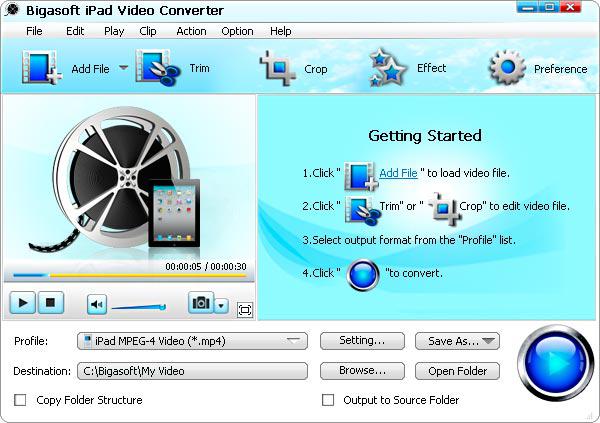
Free download the ideal DivX to iPad Converter - Bigasoft iPad Video Converter ( for Windows, for Mac), install and run it, the following interface will pop up.
(click to enlarge)DivX to iPad Converter
Step 1 Import DivX video
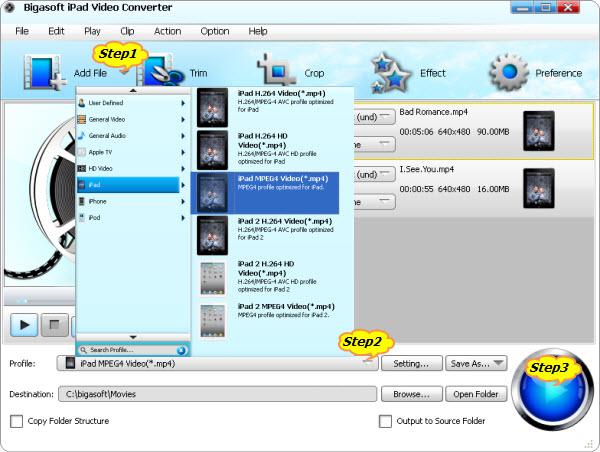
Click "Add File" button to import the DivX video file which you want to play on iPad, iPad 2 or iPad 3.Or you can also drag your DivX file directly to the main interface of Bigasoft iPad Video Converter.
(click to enlarge)Convert DivX-AVI, DivX-MP4 or DivX Media Format (<a href='http://seekingalpha.com/symbol/dmf' title='Dreyfus Municipal Income, Inc'>DMF</a>) to Play on iPad 3/iPad 2/iPad
Step 2 Set iPad supported video format and codec
This ideal iPad Video Converter has preset the optimized output format for iPad, iPad 2 and iPad 3, just click the drop-down button on the right side of the "Profile" to select the desired one from "iPad" category.
To play Divx on other Apple devices like iPhone, iPod, iTunes, Apple TV, just select the optimized output video format from the corresponding category like "iPhone" category, "iPod" category, "Apple TV" category
Step 3 Convert DivX to iPad compatible format
Click "Convert" button to start the DivX to iPad video conversion, it will be finished in few minutes with high output video quality.
Play and watch DivX on iPad
After finish converting DivX to iPad supported format, simply import the converted DivX video file to iTunes to sync DivX to iPad. Then it is dead easy to play MPEG-4 Part 2 DivX, H.264/MPEG-4 AVC DivX Plus HD, DivX Media Format (DMF), DivX-AVI or DivX-MP4 on iPad 3/iPad 2/iPad.
Resources
How to Play DivX on iPad/iPad 2/iPad 3?

Wednesday, 11 April 2012

Convert 1080p MKV or 720p MKV to iPad to Stream and Play HD MKV on iPad


With the stunning Retina display and the support for 1080p video playback, the new, third-generation iPad makes everything looks and feels incredibly lifelike and perfectly detailed. However, the new iPad 3 only enables to playback 1080p H.264 video in M4V, MP4 and MOV file formats just as iPad or iPad 2 only supports playing 720p H.264 video in M4V, MP4 and MOV format. It will end in fail if we try to play 1080p MKV on iPad 3, iPad 2 or iPad.
In fact, it is just easy to play 1080p MKV on iPad 3 or play 720p MKV on iPad or iPad 2 or even play HD 1080p MKV on iPad or iPad 2 as soon as you own the professional Bigasoft iPad Video Converter and follow the step by step guide below.
As the powerful MKV to iPad Converter, Bigasoft iPad Video Converter can fast convert 1080p MKV to iPad 3 supported 1080p H.264 format. It also enables to convert 720p MKV or even 1080p MKV to iPad or iPad 2 supported 720p H.264 format with almost no lose of video quality and fast conversion speed. In addition converting MKV to iPad, this powerful iPad Video Converter can also convert other video formats like AVI, DivX, Xvid, FLV, F4V, WMV, WTV, ASF, MPG, 3GP, AVCHD, MPEG-2, MPEG-1, TS, VOB, MXF, WebM, SWF, RMVB and etc to iPad supported video format for easy play on iPad, iPad 2 or iPad 3.
Step by Step Guide on How to Convert HD MKV to iPad
The following is a step by step guide on how to convert 1080p MKV or 720p MKV to iPad supported video format for successfully playing HD MKV on iPad/iPad 2/iPad 3.
Make Preparation: Free download and run Bigasoft iPad Video Converter
Free download the powerful MKV to iPad Converter - Bigasoft iPad Video Converter ( for Windows, for Mac), install and run it, the following interface will pop up.
1080p/720p MKV to iPad Converter

Step 1 Add 1080p MKV or 720p MKV video
Click "Add File" button to add the HD MKV video which you want to play on iPad, iPad 2 or iPad 3. This powerful MKV to iPad converter also supports drag and drop function.
Convert HD MKV to Play 720p or 1080p MKV on iPad 3/iPad 2/iPad

Step 2 Set iPad compatible format
Click the drop-down button on the right side of the "Profile" to select iPad supported video format from "iPad" category.
  • To play 1080p MKV on iPad 3, select iPad 3 1080P Video (*.mp4) from the "iPad" category.
  • To play 1080p or 720p MKV on iPad 2, select iPad 2 H.264 HD Video (*.mp4) from the "iPad" category.
  • To play 720p or 1080p MKV on the 1st generation iPad with almost no loss of video quality, select iPad H.264 HD Video (*.mp4) from the "iPad" category.
  • To convert HD MKV to iPad with smaller video file size, select iPad MPETG-4 Video (*.mp4) from the "iPad" category.

Step 3 Convert MKV to iPad
Click "Convert" button to button to finish converting HD MKV to iPad supported video format.
Stream MKV to iPad to Play MKV on iPad/iPad 2/iPad 3
After converting MKV to iPad supported format, just import the converted MKV video to iTunes for streaming MKV to iPad. Then it is just easy to watch MKV on iPad 3/iPad 2/iPad! Why not free download the powerful MKV to iPad Converter to give it a free try and play 1080p or 720p MKV on iPad with Retina display or LED-backlit IPS LCD display.

Easy Way to Stream MKV to Apple TV to Play MKV on ATV

How to Play HD MKV Movies on PS3/Xbox 360/iPad/iPhone/Android/QuickTime/Zune ...?

How to Convert DTS MKV to AC3?

How to Convert 1080p Video to Play on Apple TV/Apple TV 2/Apple TV 3?

Tuesday, 20 March 2012

Step-by-step Guide on how to Convert Video to new iPad HD 1080p/720p

Apple the new iPad features stunning Retina Display, 5MP iSight camera and ultrafast 4G LTE. The Retina Display has a screen resolution of 2048 x 1536 which makes everything you see remarkably crisper and more lifelike. The advanced quad-core ARM Cortex-A5X design processor empowers the new iPad 3 as powerful as any top-end desktop or laptop. Even with all that extra oomph, the new iPad still gets an amazing 10 hours of battery life.
The new iPad
All these significant forward makes Apple iPad cannot to be better portable device to play high definition video on the go. However, the new iPad is still restricted in playing many formats video.

The new iPad supports video format in MP4, M4V, MOV packed with AAC audio. The new iPad cannot play any other video format files like MKV, AVI, and WMV. Even in MP4, M4V or MOV video format, if the audio is in non-AAC or if the resolution is higher than 1080p with H.264 content or if the resolution/size goes higher than 640*480 pixels with MPEG-4 content, video files will be refused to be synced and played on the new iPad 3.

This article will introduces the new iPad Converter and guide you step by step to convert various kinds of video files like AVI, WMV, MOV, MP4, FLV, 3GP, MKV to the new iPad supported HD (high-definition) video or SD (stand definition) video to play on the new iPad or to airplay to Apple TV with the new iPad.

About the new iPad Converter
 
Bigasoft iPad Video Converter is efficient Video Converter for new iPad 3 which helps to convert various video like AVI, WMV, ASF, BIK, DivX, XviD, MKV, MOD, TOD, MTS, MT2S, VOB, MPG, MOV, RM, 3GP, FLV, F4V, WebM, 3GP, MVI, OGM to iPad compatible HD in 1280p/720p or SD video in 640*480, 720*576. Moreover, it can also convert between various audio formats and extract audio from video to enjoy music on the new iPad. Editing functions are also provided in the new iPad Converter like video cropping, trimming, adjust audio volume, image effect, adding watermark and so on.

Guide: How to convert video to play high definition/quality movies on the new iPad?

Make Preparation: Free download Bigasoft new iPad Converter
Free download Bigasoft new iPad Converter - Bigasoft iPad Video Converter ( for Windows, for Mac). Install and open the program.
The new iPad Converter
 
Step 1 Add files to the new iPad Converter
Click "Add files" to add video files to the new iPad 3 Video Converter. The new iPad Video Converter will immediately load files to the program.
How to convert video to 1080p for the new iPad

Step 2 Set output profile as the new iPad supported video format
By default, Bigasoft iPad Video Converter set output profile as iPad Video MPEG-4.
To convert video to the new iPad 1080p for play high definition video on the new iPad, from the "iPad" category in the profile drop-down list, select iPad 3 H.264 1080p video(*.mp4) as the profile.
To convert to iPad 720p video, select iPad 2 H.264 HD Video(*.mp4) as the profile.

Step 3 Start video to new iPad conversion
Click on the button of "Convert" to start conversion. The new iPad 3 converter will start conversion instantly with elapsed conversion time showed in the bottom of the interface.

Step 4 Transfer video to the new iPad
When conversion is finished in Step 3, click "Open Folder" to located the converted files and drag to iTunes for transfer to the new iPad.

Conclusion
Though the new iPad is sensitive to video format, resolution, bitrate, audio codec, with the help of Bigasoft new iPad Video Converter, it will be a piece of cake for you to enjoy high definition/quality video on your new iPad 3. You do not need to be computer wizard. In addition to convert video for the new iPad, Bigasoft the new iPad Converter can also help to convert video for any other devices, like convert video to Apple TV, convert video for airplay from the new iPad to Apple TV, convert video/music to iPod and so on.

Resources
Got a Windows? Free download your copy here (10.62MB)
Learn more about Bigasoft iPad Video Converter ...
FREE Download and Start Enjoying Now (27.20MB)
Learn more about Bigasoft iPad Video Converter for Mac ...

Related Articles
How to Play AVI on the new iPad 3?
Convert Video for Enjoying HD 1080p Video on iPad 2/iPad 3
How to Transfer Music/Video from iPad 2 to PC/Mac/iPad3/iPhone/iPod
Rip and Convert DVD to iPad 2/iPad 3
How to convert to play DVD on new iPad 3?

Fast Convert AVI to iPad format to Watch AVI on iPad/iPad 2/iPad 3 successfully

Though iPad announced to support AVI video, it only plays AVI that is in Motion JPEG (M-JPEG) codec. If you try to play AVI movie that is in Divx or Xvid or other codec, it will still end in fail. So does the iPad 2 and the new, third-generation iPad. Is there no way to watch all kinds of AVI on the new iPad with Retina display or watch AVI on iPad or iPad 2 with LED-backlit IPS LCD display?

This article just aims to provide a simple AVI iPad Solution: Convert AVI to iPad supported MP4 or H.264 format to successfully play AVI on the new, third-generation iPad iPad or the 1st & 2nd generation iPad.
 
Besides acting as an AVI to iPad Converter, Bigasoft iPad Video Converter also can work as an AVI to iPad 3 and iPad 2 Converter. It can fast convert all kinds of AVI movies like DV-AVI, Divx-AVI, Xvid-AVI, HD-AVI and etc to iPad (whatever the new iPad, iPad 2 or the first generation of iPad) supported video format.

In addition converting AVI, this powerful iPad Converter also supports converting WMV, MKV, FLV, WTV, VOB, MXF, MPG, 3GP, MOV, MTS, SWF, ASF, RMVB, TS and more to iPad/iPad2/iPad3 compatible format. Moreover, it also enables to convert various audio formats including FLAC, OGG, APE, QCP, WMA, CAF, M4R to iPad supported MP3, AIFF, WAV or M4A audio format or even can convert video to audio format.

How to Convert AVI to the new iPad 3
The following will take converting AVI to iPad 3 as an example. This guide also applies to converting AVI to iPad/iPad2/iTunes/iPhone 4s/iPhone 4/iPhone 3GS/iPhone 3G/iPod Touch/Apple TV and applies to converting other video formats to iPad3.

Make Preparation: Free download and Run AVI to the new iPad Converter
Free download the professional AVI to iPad Converter - Bigasoft iPad Video Converter ( for Windows, for Mac), install and run it, the following interface will pop up.
AVI to the new iPad Converter

Step 1 Import AVI to Bigasoft iPad Video Converter
Click "Add File" button to import AVI video file to this powerful AVI to iPad Conversion software. Or you can also simply drag and drop your AVI video to the main interface of this software.
Convert AVI to Play on the new iPad 3

Step 2 Select the new iPad supported format
Click the "Profile" drop-down button to select iPad 3 compatible iPad MPEG-4 Video (*.mp4) as output format from the "iPad" category.
Tips:
  • To play HD AVI on iPad 3, it is better to select iPad H.264 HD Video (*.mp4) from the "iPad" category.
  • This powerful AVI to iPad 3 converter also has preset the optimized video output profile for iPhone/iPod/Apple TV and more.
  • You can also convert AVI video to iPad supported audio by selecting iPad compatible audio like MP3, AIFF, M4A, or AAC from "General Audio" category.
Step 3 Convert AVI to iPad 3 Format
Click "Convert" button to start and finish the AVI to the new iPad 3 format conversion.

Watch AVI on iPad 3
After finish converting AVI to the new iPad supported format, simply transfer the converted AVI file to iPad 3 by via of iTunes to play AVI on the new iPad with large, beautiful Retina display.

Resources
Got a Windows? Free download your copy here (10.62MB)
Learn more about Bigasoft iPad Video Converter ...
FREE Download and Start Enjoying Now (27.20MB)
Learn more about Bigasoft iPad Video Converter for Mac ...


Related Articles
 
Convert Video for Enjoying HD 1080p Video on iPad 2/iPad 3
How to Transfer Music/Video from iPad 2 to PC/Mac/iPad3/iPhone/iPod
Rip and Convert DVD to iPad 2/iPad 3

Thursday, 1 March 2012

How to Convert and Stream AVI to Apple TV to Play AVI Files on Apple TV?

This article will explain why we failed to play AVI on Apple TV as well as introduce a step by step guide on how to convert AVI to Apple TV format for streaming and playing AVI on Apple TV. Moreover, this guide also applies to how to play AVI on iPhone/iPad/iPod/iTunes.
Why Failed to Stream AVI to Apple TV?
Though Apple TV can stream your video files from computers, it has video format limitation. It only support H.264 or MPEG-4 video format. If you attempt to sync unsupported video format like AVI to Apple TV, it will draw an error message from iTunes.
How to Successfully Stream and Play AVI on Apple TV?
In order to stream AVI video files to Apple TV successfully, we need to convert these AVI movies to a format compatible with iTunes and Apple TV. Bigasoft Total Video Converter is just the ideal AVI to Apple TV and iTunes converter. It can easily convert AVI to Apple TV compatible MP4 or H.264 format. Then it is just easy to stream the converted AVI to Apple TV for play AVI files on Apple TV.
Guide on How to Convert AVI to Apple TV Format for Streaming and Playing
The following will introduce a step by step guide on how to convert AVI to Apple TV supported format on Mac or Windows with the help of Bigasoft Total Video Converter. Then it is just easy to stream and play AVI on Apple TV 2 or Apple TV.
Make Preparation: Run Bigasoft Total Video Converter
Free download the professional AVI to Apple TV Converter -Bigasoft Total Video Converter (Mac Version, Windows Version), install and launch it, the following interface will pop up.
AVI to Apple TV 2 Converter

Step 1 Add AVI video file
Click "Add File" button to import AVI video file. Or you can also drag your AVI file directly to the main interface of Bigasoft Total Video Converter.
How to convert AVI to Apple TV format for playing AVI on Apple TV

Step 2 Set Apple TV compatible video format
Click the drop-down button on the right side of the "Profile" to select Apple TV supported MPEG-4 Video (*.mp4) from "General Video" Category.
Step 3 Convert AVI to Apple TV supported format
Click "Convert" button to finish converting AVI to Apple TV supported video format.
Stream and Play AVI Files on Apple TV
After finishing the AVI to Apple TV format conversion, just drag and drop the converted AVI to iTunes for streaming to Apple TV! Then it is just easy to play AVI on your widescreen Apple TV. Wait no more, just free download the powerful AVI to Apple TV conversion software to have a free try.
Moreover, this Total Video Converter also enables to convert AVI to iPhone/iPad/iPod video formats. It even can convert other video formats including MKV, MPEG, 3GP, WMV, FLV, MOD, TOD, WTV, WebM, F4V, BIK, M4B, 720p, 1080p, 1080i HD, Xvid, DivX, AVCHD to iTunes compatible video MP4, MOV, M4V.
Resources
FREE Download and Start Enjoying Now (24.51MB)
Learn more about Bigasoft Total Video Converter for Mac ...
Got a Windows? Free download your copy here (10.32MB)
Learn more about Bigasoft Total Video Converter ...
Related Articles
How to Convert and Import AVI to iTunes/iPad/iPhone/iPod/Apple TV?
How to Successfully Burn AVI with iDVD?
Easy Solution to Import AVI to iMovie
How to Play AVI on Apple TV 2 or Apple TV?

Wednesday, 22 February 2012

Convert MOV to MPEG4 to Play MOV on iPad/iPad 2

According to Apple official website, iPad or iPad 2 does sync and play

MOV video file. But we can only import and play MOV which is in MPEG-4

or H.264 codec on iPad or iPad 2. If the MOV video file is in other

codecs, we will either fail to transfer and import MOV to iPad or fail

to play MOV on iPad/iPad 2 successfully.


What kind of MOV file often fails to play on iPad/iPad2?


iPad won't play QuickTime MOV which is not encoded with MPEG-4 or H.264

iPad will refuse to import and play MOV files recorded from most camcorders or cameras like Nikon, Kodak, Canon and more.


iPad often fail to sync and play MOV files created with Final Cut Pro, Final Cut Express or iMovie

iPad can not transfer and play MOV games or most MOV files downloaded from websites


How to successfully play all kinds of MOV on iPad or iPad2?


Converting MOV to MPEG-4 will easily solve all the above situations! Among all the

video formats, MPEG-4 is the most compatible one for iPad or iPad 2.

You will successful play MOV on iPad or iPad 2 as soon as you convert

MOV to MPEG4 no matter what kind of MOV files they are.


The following will describe a step by step guide on how to convert MOV to

iPad supported MPEG-4 format so as to successfully transfer MOV to iPad

for Play MOV on iPad or iPad 2.

Preparation:Run Bigasoft iPad Video Converter
Free download Bigasoft iPad Video Converter (Windows Version , Mac Version ), install and run it, the following interface will pop up.


Bigasoft
iPad Video Converter is specially designed to convert various videos
formats to iPad or iPad 2 compatible MPEG-4 or H.264 format like MOV to
MPEG-4, FLV to MPEG-4, AVI to MPEG-4, WMV to MPEG-4, MKV to MPEG-4, MPG
to MPEG-4, WTV to MPEG-4, 3GP to MPEG-4, ASF to MPEG-4 and more.
Besides, it also can convert audio files including WMA, OGG, FLAC, WAV,
MP2, AMR, AC3, RA, etc. to iPad MP3 or M4R. Moreover, it is also
equipped with video editing function like video merge, video trim, video
crop, video effect, video rotate, video watermark and more.


Step 1 Import MOV to iPad Video Converter
Click "Add File" button to import MOV to Bigasoft iPad Video Converter.
Or you can also simply drag and drop your MOV file directly to the main interface of this powerful MOV to iPad Converter.


Step 2 Set Output Format as MPEG-4
Click the "Profile" drop-down button to select iPad compatible iPad MPEG4 Video(*.mp4) from "iPad" Category.

Step 3 Convert MOV to MPEG4
Click "Convert" button to finish convert MOV to iPad compatible MPEG-4 video format.

Step 4 Sync MOV to iPad
Start
iTunes, connect iPad or iPad 2 to computer, and then import the
converted MOV file to iTunes for sync and transfer MOV to iPad or iPad2.


Step 5 Play MOV on iPad or iPad 2

After
importing MOV to iPad or iPad 2, just enjoy and watch MOV on iPad or
iPad 2 just like you enjoy other videos on your ipad on the go.

Wednesday, 7 September 2011

MP4 to iPad - How to Play MP4 on iPad/iPad2 successfully

Usually, iPad does import and play MP4 files. However, sometimes you will fail to transfer MP4 to iPad let alone to play MP4 on iPad or iPad2. This article will describe the reason why we fail to transfer and play MP4 on iPad and the solution on how to successfully play all kinds of MP4, HD MP4 on iPad or iPad2.

Why Fail to Transfer MP4 to iPad
According to Apple official website, iPad is only compatible with H.264, MPEG-4 or Motion JPEG video format with the following specifications:
  • If it is H.264 video, it should meet: up to 720p, 30 frames per second, Main Profile level 3.1 with AAC-LC audio up to 160 Kbps, 48kHz, stereo audio in .m4v, .mp4, and .mov file formats;
  • If it is MPEG-4 video, it should meet: up to 2.5 Mbps, 640 by 480 pixels, 30 frames per second, Simple Profile with AAC-LC audio up to 160 Kbps per channel, 48kHz, stereo audio in .m4v, .mp4, and .mov file formats;
  • If it is Motion JPEG (M-JPEG), it should meet: up to 35 Mbps, 1280 by 720 pixels, 30 frames per second, audio in ulaw, PCM stereo audio in .avi file format.
If the MP4 video is not in the above technical specification, you will fail to transfer MP4 to iPad or fail to play MP4 on iPad or iPad2.

How to Play MP4 on iPad or iPad2 successfully?
In order to play MP4 or HD MP4 files on iPad or iPad2, we have to convert them to iPad supported video format with specific specifications.

Bigasoft iPad Video Converter is just the ideal solution tool. With the optimized preset for iPad, it is just easy to convert all kinds of MP4 to iPad supported format with great quality and high speed. Besides it can also convert other video formats including AVI, MKV, WMV, ASF, MTS, VOB, MPEG, MOV, RM, 3GP, high quality 1080p or 1080i MKV, M2TS and more to iPad video MP4 or iPad H.264 720p video.
The following is a step by step guide on how to convert MP4 to iPad supported video format with the help of Bigasoft iPad Video Converter.

Preparation: Run Bigasoft iPad Video Converter
Free download Bigasoft iPad Video Converter (Windows Version, Mac Version), install and Run it, the following interface will pop up.
MP4 to iPad Converter
Step 1 Import MP4 video file
Click "Add File" button to import MP4 Video file. Or you can also drag your MP4 file directly to the main interface of Bigasoft iPad Video Converter.
Guide on how to convert MP4 to iPad to play MP4 on iPad/iPad2/iPhone/iPod

Step 2 Set iPad MPEG-4 video format
Click the drop-down button on the right side of the "Profile" to select iPad compatible MP4 format like iPad MPEG4 Video(*.mp4) from "iPad" Category.

Step 3 Convert MP4 to iPad supported MP4 format
Click "Convert" button to finish converting MP4 to iPad compatible MP4 format.

Step 4 Transfer MP4 to iPad
Connect iPad to computer, start iTunes, and then import the converted MP4 file to iTunes for sync and transfer MP4 to iPad.

Play MP4 on iPad on the go
With Bigasoft iPad Video Converter, it is just easy to transfer and play MP4 on iPad! It also applies to convert and play MP4 on iPad2/iPhone/iPod and more. It even applies to play other videos on ipad including AVI, MKV, WMV, MOV, MTS, MPG, FLV etc. Wait no more, just get this powerful iPad Video Converter now!
Resources
FREE Download and Start Enjoying Now (9.67MB)
Learn more about Bigasoft iPad Video Converter ...
Got a Mac? Free download your copy here (23.47MB)
Learn more about Bigasoft iPad Video Converter for Mac ...

Related Articles
How to import MP4 to iMovie
How to Import MP4 to Adobe Premiere Pro CS3/ CS4/ CS5?
WTV to MP4 Converter - Convert WTV, HD WTV to MP4, HD MP4
Convert MP4 to DV and Import MP4 to FCP with ease
How to Play MP4 on iPad, iPad2, iPhone or iPod?