Wednesday, 7 September 2011

MP4 to iPad - How to Play MP4 on iPad/iPad2 successfully

Usually, iPad does import and play MP4 files. However, sometimes you will fail to transfer MP4 to iPad let alone to play MP4 on iPad or iPad2. This article will describe the reason why we fail to transfer and play MP4 on iPad and the solution on how to successfully play all kinds of MP4, HD MP4 on iPad or iPad2.

Why Fail to Transfer MP4 to iPad
According to Apple official website, iPad is only compatible with H.264, MPEG-4 or Motion JPEG video format with the following specifications:
  • If it is H.264 video, it should meet: up to 720p, 30 frames per second, Main Profile level 3.1 with AAC-LC audio up to 160 Kbps, 48kHz, stereo audio in .m4v, .mp4, and .mov file formats;
  • If it is MPEG-4 video, it should meet: up to 2.5 Mbps, 640 by 480 pixels, 30 frames per second, Simple Profile with AAC-LC audio up to 160 Kbps per channel, 48kHz, stereo audio in .m4v, .mp4, and .mov file formats;
  • If it is Motion JPEG (M-JPEG), it should meet: up to 35 Mbps, 1280 by 720 pixels, 30 frames per second, audio in ulaw, PCM stereo audio in .avi file format.
If the MP4 video is not in the above technical specification, you will fail to transfer MP4 to iPad or fail to play MP4 on iPad or iPad2.

How to Play MP4 on iPad or iPad2 successfully?
In order to play MP4 or HD MP4 files on iPad or iPad2, we have to convert them to iPad supported video format with specific specifications.

Bigasoft iPad Video Converter is just the ideal solution tool. With the optimized preset for iPad, it is just easy to convert all kinds of MP4 to iPad supported format with great quality and high speed. Besides it can also convert other video formats including AVI, MKV, WMV, ASF, MTS, VOB, MPEG, MOV, RM, 3GP, high quality 1080p or 1080i MKV, M2TS and more to iPad video MP4 or iPad H.264 720p video.
The following is a step by step guide on how to convert MP4 to iPad supported video format with the help of Bigasoft iPad Video Converter.

Preparation: Run Bigasoft iPad Video Converter
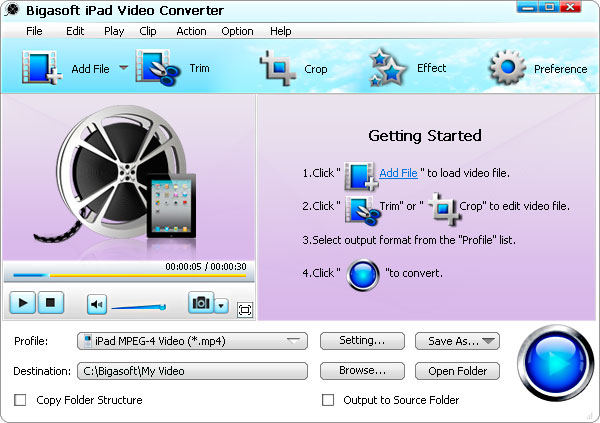
Free download Bigasoft iPad Video Converter (Windows Version, Mac Version), install and Run it, the following interface will pop up.
MP4 to iPad Converter
Step 1 Import MP4 video file
Click "Add File" button to import MP4 Video file. Or you can also drag your MP4 file directly to the main interface of Bigasoft iPad Video Converter.
Guide on how to convert MP4 to iPad to play MP4 on iPad/iPad2/iPhone/iPod

Step 2 Set iPad MPEG-4 video format
Click the drop-down button on the right side of the "Profile" to select iPad compatible MP4 format like iPad MPEG4 Video(*.mp4) from "iPad" Category.

Step 3 Convert MP4 to iPad supported MP4 format
Click "Convert" button to finish converting MP4 to iPad compatible MP4 format.

Step 4 Transfer MP4 to iPad
Connect iPad to computer, start iTunes, and then import the converted MP4 file to iTunes for sync and transfer MP4 to iPad.

Play MP4 on iPad on the go
With Bigasoft iPad Video Converter, it is just easy to transfer and play MP4 on iPad! It also applies to convert and play MP4 on iPad2/iPhone/iPod and more. It even applies to play other videos on ipad including AVI, MKV, WMV, MOV, MTS, MPG, FLV etc. Wait no more, just get this powerful iPad Video Converter now!
Resources
FREE Download and Start Enjoying Now (9.67MB)
Learn more about Bigasoft iPad Video Converter ...
Got a Mac? Free download your copy here (23.47MB)
Learn more about Bigasoft iPad Video Converter for Mac ...

Related Articles
How to import MP4 to iMovie
How to Import MP4 to Adobe Premiere Pro CS3/ CS4/ CS5?
WTV to MP4 Converter - Convert WTV, HD WTV to MP4, HD MP4
Convert MP4 to DV and Import MP4 to FCP with ease
How to Play MP4 on iPad, iPad2, iPhone or iPod?

How to Convert and Import AVI to iTunes/iPad/iPhone/iPod/Apple TV?

This article will describe a step by step guide on how to convert and import AVI files to iTunes. Then it is just easy to watch AVI movies on iTunes or sync AVI video to iPad, iPad2, iPhone 4, iPhone 3GS, iPhone 3G, iPod, iPod Touch and more.

Why Failed to Import AVI to iTunes
According to Apple official website, iTunes only works with QuickTime and MPEG-4 Movie files that end in ".mov", ".m4v", or ".mp4" and are playable in QuickTime Player. Therefore, if you try to import .avi movie to iTunes for syncing, it will end in fail in importing AVI video to iTunes let alone transfer this AVI file to iPad, iPhone, iPod.

How to Import AVI Video to iTunes successfully?
In order to successfully import AVI files to iTunes, we have to convert this AVI video to iTunes compatible video format like MP4. Bigasoft iPad Converter is just the right AVI to iTunes conversion software. It can easily convert AVI video file to iTunes supported MP4 format for transfer AVI to iPad, iPad2, iPhone, iPod, Apple TV and more.

Moreover, the powerful AVI to iTunes converter can convert other video formats including MPEG, MKV, WMV, WTV, 3GP, FLV, ASF, MTS, VOB, RM, RMVB, TS and more to iTunes format for transferring to iPad/iPhone/iPod/Apple TV. It also can convert audio files including WMA, OGG, FLAC, MP2, AC3, RA, M4B, AAC, CAF to iTunes supported MP3, AIFF, WAV or M4A audio format. It even can convert various video formats to iTunes audio format.

Step by step Guide on How to Import AVI to iTunes
The following is a step by step guide on how to convert and import AVI to iTunes with the help of Bigasoft iPad Video Converter.

Make Preparation: Run Bigasoft iPad Video Converter
Free Download Bigasoft iPad Video Converter (for Windows , for Mac ) install and run it, the following interface will pop up.

AVI to iTunes Converter

Step 1 Add AVI video file
Click "Add File" button to import AVI video file. Or you can also drag your AVI file directly to the main interface of Bigasoft iPad Video Converter.

Step by step guide on how to convert AVI to iTunes format

Step 2 Set iTunes supported MP4 format
Click the drop-down button on the right side of the "Profile" to set iTunes compatible MP4 format.
  • To transfer AVI to iPad or iPad2 by iTunes, select iPad MPEG-4 Video (*.mp4) from the "iPad" category.
  • To transfer AVI to iPhone 4, iPhone 3GS, iPhone 3G, select iPhone MPEG-4 Video (*.mp4) from the "iPhone" category.
  • To transfer AVI to iPod classic, iPod nano, iPod touch, iPod touch 4, iPod shuffle, select iPod MPEG-4 Video (*.mp4) from the "iPod" category.
  • To transfer AVI to Apple TV, select Apple TV MPEG-4 Video (*.mp4) from the "iPod" category.
Step 3 Convert AVI to iTunes supported format
Click "Convert" button to finish converting AVI to iTunes compatible video format.

Step 4 Import AVI to iTunes
Start iTunes, and then choose File > Add File to Library to import the converted AVI files to iTunes or you also can simply drag and drop this converted AVI movie to the iTunes Movie Library.
How to import AVI to iTunes

Enjoy or Transfer AVI to iPad/iPhone/iPod/Apple TV
After finishing the conversion and importing, just enjoy your AVI movies on your iTunes or sync them to iPad, iPhone, iPod, Apple TV for watching AVI video on the go. Wait no more, just free download the powerful AVI to iTunes converter for importing AVI files to iTunes/iPad/iPhone/iPod/Apple TV.

Resources
FREE Download and Start Enjoying Now (7.75MB)
Learn more about Bigasoft iPad Video Converter ...

Got a Mac? Free download your copy here (20.80MB)
Learn more about Bigasoft iPad Video Converter for Mac ...

Related Tutorials

Friday, 1 April 2011

How to Transfer Your Old iPad Information To New Apple iPad 2 In 3 Steps

Apple iPad 2 was released, and will be sold on March 11, so some people will get the new Apple iPad very soon. And if you get the new iPad 2, you will do something for it, this guide will help you transfer your old Apple iPad information to new Apple iPad 2 in 3 steps
Apple just released the Apple iPad 2, and it will be sold on March 11, So we could get the new Apple iPad 2 soon. And get the new Apple iPad 2 is means that you will do something for it, the first thing must be that you need to make sure all of your information is transferred form your old Apple iPad to your new Apple iPad 2. Then you must make sure all data of your old iPad is cleared in case you want to sell it for cash or give it away, this guide will tell you how to transfer your old iPad information to new Apple iPad 2 in 3 steps.

How to Transfer Your Old iPad Information To New Apple iPad 2 In 3 Steps

Step 1: Back Up Your Current Apple iPad

Follow these step to backup your current iPad:
  • 1. Sync your iPad with iTunes, it will creates a backup of your iPad settings, app data, and other information automatically.
  • 2. The backups do not include synced items including songs and videos from your iTunes library, it also not include information, such as contacts and calendar items from your computer. If you have information you added on your iPad since your last backup, you will make sure you sync to iTunes and make sure you have ticked the correct check boxes such as 'Contacts' and 'Calendars' in order to get that information on your PC and ready for syncing to your new iPad.

Step 2: Clear Out Your Old iPad

If you want to give your old Apple iPad away or sell it, the best way to do is restore it back to the original settings and erase all your information.
  • 1. Connect Your old iPad to your computer and tap on the iPad icon on the left, then tap on 'Restore' on the Summary tab.
  • 2. On the iPad, tap on Settings->General->Reset, then choose "Erase All Content..."

Step 3: Sync Your Apple iPad 2

Now, you can sync your Apple iPad 2 with iTunes, just plug it in and it will begin the sync process. And don't forget to make sure you have checked all of the boxes in iTunes so that it syncs your music, contacts, calendar, videos, apps and so on. If you want save all your settings, and saved game data and so on. you can also restore your Apple iPad 2 from a backup of your pervious iPad by following these steps:
  • 1. Connect your Apple iPad 2 to you computer with the backup stored on it.
  • 2. In iTunes, click on the iPad icon in the sidebar and then choose 'Restore from Backup' from the menu that appears.
  • 3. Choose the backup you want to restore from, then click 'Restore'.
Now After these 3 step your Apple iPad 2 will have all the settings, apps, and information of the previous iPad. You can sale your iPad or give it away. And enjoy the new one.

Related Articles 

How to Transfer Music/Video from iPad 2 to PC/Mac

Convert Video for Enjoying HD 1080p Video on iPad 2

Rip and Convert DVD to iPad 2

Wednesday, 16 March 2011

Convert Video for Enjoying HD 1080p Video on iPad 2

There has been quite a bit of buzz around the next iPad since Apple Inc. unveiled iPad 2 on March 2 2011 in San Francisco. The newly designed iPad 2 makes more at your fingertips while less in your hands. It provides two cameras for FaceTime, HD video recording, the dual-core A5 chip and makes surfing the web, checking email, watching movies, and reading books so natural. All in a thinner, lighter and faster design.

What's more, the 9.7-inch backlit-LED IPS display could not be better to play HD video on the go. While iPad 2 can only play MP4, MOV, H.264 video just like iPad or iPhone does. It is really fantastic if we can play AVI/WMV/FLV/HD AVCHD 720p, 1080p, 1080i videos on iPad 2 720p.

Simple way to Play Video on iPad 2 This following will introduce a step by step guide on how to play all kinds of videos on iPad 2, enjoy H.264 high definition video up to 720p, 30 frames per second.

This guide applies to:
  • Convert and play AVI on iPad 2
  • Convert and play WMV on iPad 2
  • Convert and Play RAD on iPad 2
  • Convert and play FLV on iPad 2
  • Convert and play F4V on iPad 2
  • Convert and play AVCHD on iPad 2
  • Convert and play MPEG on iPad 2
  • Convert and play MKV on iPad 2
  • Convert and play HD on iPad 2
  • Convert and Play AVI, WMV, ASF, AVCHD, RAD, BIK, DivX, MKV, MOD, TOD, MTS, VOB, MPEG, MOV, MTS, MT2S, RM, 3GP, FLV, F4V, WebM, 3GPP and more on iPad, iPad 2, iPhone 3G, iPhone 3GS, iPhone 4, iPod, iMovie, Final Cut Pro or Final Cut Express
Make Preparation: Run Bigasoft iPad Video Converter
Free Download Bigasoft iPad Video Converter (for Windows ,for Mac ) install and run it.
Bigasoft iPad Video Converter, a powerful iPad 2 Video Converter, is specially designed to help iPad or iPad 2 fans to convert and play any kind of video and audio format. The professional iPad 2 Video Converter can convert all kinds of video formats including AVI, WMV, ASF, AVCHD, RAD, BIK, DivX, MKV, MOD, TOD, MTS, VOB, MPEG, MOV, MTS, MT2S, RM, 3GP, FLV, F4V, WebM, 3GPP, MVI and more to iPad video MP4 and iPad H.264 720p video. Moreover, it can also convert audio files including WMA, WAV, MP2, AC3, RA, M4A, OGG, AAC etc. to iPad 2 MP3.

Step 1 Add video file
Hit "Add File" button to import video file you want to play on iPad 2
Convert Video to iPad 2
 
Step 2 Set iPad 2 MPEG-4 format and iPad 2 supported resolution
Click the drop-down button on the right side of the "Profile" to select MPEG-4 Video (*.mp4) as output format. Then press "Settings..." button to select wanted resolution like 640*480 or 720*576 or 1280*720 from the drop down list of Resolution or define your desired video resolution by overwriting the existing one.

Step 3 Convert video to iPad 2 compatible video format
press "Convert" button to finish converting video to iPad 2 supported video format.

Conclusion
With the above software and step by step guide, Apple fans are no longer restricted to playing certain files on iPad 2. You can easily convert and enjoy various High-definition (HD) video files on large, high-resolution screen iPad 2 with a perfect crisp and vibrant display. Besides, you can even use this software to convert various videos to iPad, iPhone 3G, iPhone 3GS, iPhone 4, iPod, iMovie, iPad version iMovie, Final Cut Pro or Final Cut Express compatible video format.


Resources

Learn more about Bigasoft iPad Video Converter ...


Learn more about Bigasoft iPad Video Converter for Mac ...


Related Tutorials

Transfer Music/Video from iPod/iPad /iPhone to iPad 2 or from iPad 2 to Mac/ PC/ iPhone/iPod/iPad.

With the debut of iPad 2 in the Apple market, there are a flood of discussions about pros and cons of Apple iPad 2. Some consider the second generation of iPad to be much thinner, lighter, faster and more powerful than the first generation; while others consider iPad 2 is just the same as iPad.

There is no doubt the iPad 2 will be a greater one. But is it worthy to upgrade for the current iPad users? If choose upgrade, the first problem they would meet is how to transfer songs/movies from current iPad to iPad 2 or iPhone to iPad 2, or iPod to iPad 2.
Transfer music/video from iPad 2 to PC/Mac/iPhone/iPod and Vice Versa As for new Apple users, if they decide to buy the newly iPad 2, they still will meet some inconvenience. For Apple only allows transferring files from iTunes or computer to iPad 2, but it blocks the transfer from iPad 2 to Mac or PC.

In fact, there is no need to worry the above problem as long as you own Bigasoft iPad 2 Transfer.
With it, you can easily transfer music/video/playlist from iPhone/iPod/iPad to iPad 2 or from iPad 2 to PC/Mac/iPhone/iPod.

The following is a step by step guide on how to do that.
Step 1 Run Bigasoft iPad 2 Transfer
Free Download the professional Bigasoft iPad 2 Transfer - Bigasoft iPod Transfer (Windows Version ,Mac Version ) install and run it.

Step 2 Attach iPad 2 to Mac or iPad 2 to PC
Connect iPad 2 to your computer through USB cable, and then the transfer software will automatically load your iPad 2 into it. The interface of the transfer software will show you the type, capacity, version and other information of your iPad 2 just as it load iPod below.

Screenshot of Bigasoft iPod Transfer
 
Step 3 Select the files you want to transfer
Click "Add File to List" button to select files you want to transfer, and then check the file(s) you want to transfer in the file list.
Or you can directily drag and drop audio to "Audio" folder, drag and drop videos to "Video" folder, and then check the file(s) you want to transfer in the file folder list.

Step 4 Transfer files to PC/Mac/iPhone/iPad/iPod
Click "Export to Local" button to choose the target folder for saving iPad 2 files on PC, and then click "OK" button to begin transfer files from iPad 2 to Mac or PC.
Click "Export to iPod" button to transfer files from iPad 2 to iPad/iPhone/iPod. (You first need to connect you iPad/iPhone/iPod to this computer too.)

Conclution
There is no need to worry how to transfer music/video from iPad 2 to Mac, iPad 2 to PC, iPad 2 to iPhone, iPad 2 to iPod, iPad 2 to iPad or from iPod to iPad 2, iPad to iPad 2, iPhone to iPad 2 as soon as you follow the above guide.

Resources

Learn more about Bigasoft iPod Transfer ...

Learn more about Bigasoft iPod Transfer for Mac ...


Related Tutorials

Convert DVD to iPad 2 to Play DVD on Apple iPad 2/iPhone 4/iPod/iPad/iMovie/Final Cut Pro

With the release of iPad 2, iPad has becomes thinner, lighter, faster! And it makes a fashion and comfortable thing to surf the web, check email, watch movies, and read books on iPad 2 on the go. How wonderful if this smart iPad tablet computer can play DVD!

As we know, there is no built-in DVD-ROM or DVD player on iPad 2. And iPad 2 is only available with MP4, MOV, H.264 video format and MP3, M4A, WAV audio format. It is a real brain buster to play DVD on the beautiful 9.7-inch high-resolution and LED-backlit display of iPad 2.

In fact, it is just easy to enjoy DVD on iPad 2 as long as you own Bigasoft DVD to iPad 2 Converter.

Bigasoft DVD to iPad 2 Converter
Bigasoft DVD to iPad 2 Converter is especially designed for Apple fans to enjoy favorite DVD on the amazing iPad 2/iPhone 4/iPod and more. The powerful Bigasoft DVD to iPad 2 Converter can fast convert High-Definition (HD) DVD to Apple iPad 2 compatible MP4, MOV, H.264 video format with amazing video and audio quality. It even can easily extract audio from DVD to iPad audio MP3, M4A, and WAV.
Moreover, This DVD iPad 2 Converter can also meet all your personalized needs. With Bigasoft DVD to iPad Converter, it is available to select target subtitle and audio track, customize file size, rip only wanted movie clip, capture preferred pictures, merge chapters, crop the video, and more.

Learn How to Rip and Convert DVD to iPad 2
Besides converting DVD to iPad 2, this guide also applies to converting DVD to iPod/ iPhone 4/iPhone 3GS/iPhone 3G/iMovie/Final Cut Pro/Final Cut Express...

Preparation:
Free Download Bigasoft DVD to iPad Converter (for Windows ,for Mac ) install and run it.

Insert the DVD disc into the disc drive.

Guide on How to Rip and Convert DVD to iPad 2
 
Step 1 Import DVD to this DVD iPad Converter
Click on "Open DVD" button to loud DVD to Bigasoft DVD to iPad Converter.

Step 2 Set output format as iPad 2 compatible MP4
Click the small triangle to the right of Profile, a drop down menu will pop up, then select iPad 2 compatible video format like MPEG-4 Video (*.mp4) or HD MPEG-4 Video (*.mp4).

Step 3 Set wanted resolution for output video (Optional)
If you set MPEG-4 Video (*.mp4) as output video format in step 2, press "Settings..." button, a setting box will pop up, select wanted resolution like 640*480 or 720*576 or 1280*720 from the drop down list of "Resolution". If you want higher resolution more than 1280*720, you need to set HD MPEG-4 Video (*.mp4) as output video format in step 2, then press "Settings..." button and select 1440*1080 or 1920*1080 in the drop down list of "Resolution".

Step 4 Finish ripping DVD to iPad 2 format
Click "Start" button to finish converting DVD to iPad 2 compatible MP4 format.

Conclusion
It is just easy to play DVD on iPad 2 with the above guide! And this guide also applies to converting and importing DVD to iPod/ iPhone 4/iPhone 3GS/iPhone 3G/iMovie/Final Cut Pro/Final Cut Express...

Resources