Tuesday, 20 March 2012

Step-by-step Guide on how to Convert Video to new iPad HD 1080p/720p

Apple the new iPad features stunning Retina Display, 5MP iSight camera and ultrafast 4G LTE. The Retina Display has a screen resolution of 2048 x 1536 which makes everything you see remarkably crisper and more lifelike. The advanced quad-core ARM Cortex-A5X design processor empowers the new iPad 3 as powerful as any top-end desktop or laptop. Even with all that extra oomph, the new iPad still gets an amazing 10 hours of battery life.
The new iPad
All these significant forward makes Apple iPad cannot to be better portable device to play high definition video on the go. However, the new iPad is still restricted in playing many formats video.

The new iPad supports video format in MP4, M4V, MOV packed with AAC audio. The new iPad cannot play any other video format files like MKV, AVI, and WMV. Even in MP4, M4V or MOV video format, if the audio is in non-AAC or if the resolution is higher than 1080p with H.264 content or if the resolution/size goes higher than 640*480 pixels with MPEG-4 content, video files will be refused to be synced and played on the new iPad 3.

This article will introduces the new iPad Converter and guide you step by step to convert various kinds of video files like AVI, WMV, MOV, MP4, FLV, 3GP, MKV to the new iPad supported HD (high-definition) video or SD (stand definition) video to play on the new iPad or to airplay to Apple TV with the new iPad.

About the new iPad Converter
 
Bigasoft iPad Video Converter is efficient Video Converter for new iPad 3 which helps to convert various video like AVI, WMV, ASF, BIK, DivX, XviD, MKV, MOD, TOD, MTS, MT2S, VOB, MPG, MOV, RM, 3GP, FLV, F4V, WebM, 3GP, MVI, OGM to iPad compatible HD in 1280p/720p or SD video in 640*480, 720*576. Moreover, it can also convert between various audio formats and extract audio from video to enjoy music on the new iPad. Editing functions are also provided in the new iPad Converter like video cropping, trimming, adjust audio volume, image effect, adding watermark and so on.

Guide: How to convert video to play high definition/quality movies on the new iPad?

Make Preparation: Free download Bigasoft new iPad Converter
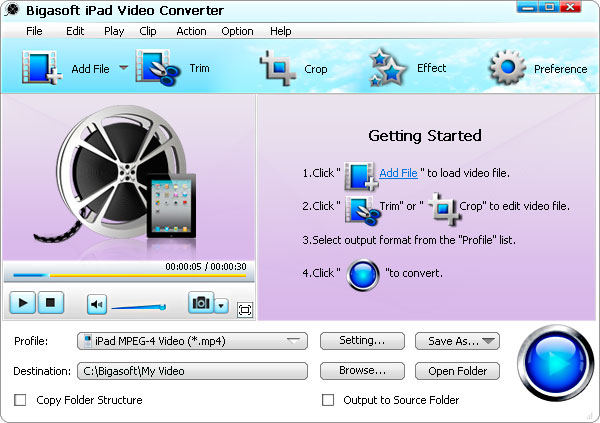
Free download Bigasoft new iPad Converter - Bigasoft iPad Video Converter ( for Windows, for Mac). Install and open the program.
The new iPad Converter
 
Step 1 Add files to the new iPad Converter
Click "Add files" to add video files to the new iPad 3 Video Converter. The new iPad Video Converter will immediately load files to the program.
How to convert video to 1080p for the new iPad

Step 2 Set output profile as the new iPad supported video format
By default, Bigasoft iPad Video Converter set output profile as iPad Video MPEG-4.
To convert video to the new iPad 1080p for play high definition video on the new iPad, from the "iPad" category in the profile drop-down list, select iPad 3 H.264 1080p video(*.mp4) as the profile.
To convert to iPad 720p video, select iPad 2 H.264 HD Video(*.mp4) as the profile.

Step 3 Start video to new iPad conversion
Click on the button of "Convert" to start conversion. The new iPad 3 converter will start conversion instantly with elapsed conversion time showed in the bottom of the interface.

Step 4 Transfer video to the new iPad
When conversion is finished in Step 3, click "Open Folder" to located the converted files and drag to iTunes for transfer to the new iPad.

Conclusion
Though the new iPad is sensitive to video format, resolution, bitrate, audio codec, with the help of Bigasoft new iPad Video Converter, it will be a piece of cake for you to enjoy high definition/quality video on your new iPad 3. You do not need to be computer wizard. In addition to convert video for the new iPad, Bigasoft the new iPad Converter can also help to convert video for any other devices, like convert video to Apple TV, convert video for airplay from the new iPad to Apple TV, convert video/music to iPod and so on.

Resources
Got a Windows? Free download your copy here (10.62MB)
Learn more about Bigasoft iPad Video Converter ...
FREE Download and Start Enjoying Now (27.20MB)
Learn more about Bigasoft iPad Video Converter for Mac ...

Related Articles
How to Play AVI on the new iPad 3?
Convert Video for Enjoying HD 1080p Video on iPad 2/iPad 3
How to Transfer Music/Video from iPad 2 to PC/Mac/iPad3/iPhone/iPod
Rip and Convert DVD to iPad 2/iPad 3
How to convert to play DVD on new iPad 3?

Fast Convert AVI to iPad format to Watch AVI on iPad/iPad 2/iPad 3 successfully

Though iPad announced to support AVI video, it only plays AVI that is in Motion JPEG (M-JPEG) codec. If you try to play AVI movie that is in Divx or Xvid or other codec, it will still end in fail. So does the iPad 2 and the new, third-generation iPad. Is there no way to watch all kinds of AVI on the new iPad with Retina display or watch AVI on iPad or iPad 2 with LED-backlit IPS LCD display?

This article just aims to provide a simple AVI iPad Solution: Convert AVI to iPad supported MP4 or H.264 format to successfully play AVI on the new, third-generation iPad iPad or the 1st & 2nd generation iPad.
 
Besides acting as an AVI to iPad Converter, Bigasoft iPad Video Converter also can work as an AVI to iPad 3 and iPad 2 Converter. It can fast convert all kinds of AVI movies like DV-AVI, Divx-AVI, Xvid-AVI, HD-AVI and etc to iPad (whatever the new iPad, iPad 2 or the first generation of iPad) supported video format.

In addition converting AVI, this powerful iPad Converter also supports converting WMV, MKV, FLV, WTV, VOB, MXF, MPG, 3GP, MOV, MTS, SWF, ASF, RMVB, TS and more to iPad/iPad2/iPad3 compatible format. Moreover, it also enables to convert various audio formats including FLAC, OGG, APE, QCP, WMA, CAF, M4R to iPad supported MP3, AIFF, WAV or M4A audio format or even can convert video to audio format.

How to Convert AVI to the new iPad 3
The following will take converting AVI to iPad 3 as an example. This guide also applies to converting AVI to iPad/iPad2/iTunes/iPhone 4s/iPhone 4/iPhone 3GS/iPhone 3G/iPod Touch/Apple TV and applies to converting other video formats to iPad3.

Make Preparation: Free download and Run AVI to the new iPad Converter
Free download the professional AVI to iPad Converter - Bigasoft iPad Video Converter ( for Windows, for Mac), install and run it, the following interface will pop up.
AVI to the new iPad Converter

Step 1 Import AVI to Bigasoft iPad Video Converter
Click "Add File" button to import AVI video file to this powerful AVI to iPad Conversion software. Or you can also simply drag and drop your AVI video to the main interface of this software.
Convert AVI to Play on the new iPad 3

Step 2 Select the new iPad supported format
Click the "Profile" drop-down button to select iPad 3 compatible iPad MPEG-4 Video (*.mp4) as output format from the "iPad" category.
Tips:
  • To play HD AVI on iPad 3, it is better to select iPad H.264 HD Video (*.mp4) from the "iPad" category.
  • This powerful AVI to iPad 3 converter also has preset the optimized video output profile for iPhone/iPod/Apple TV and more.
  • You can also convert AVI video to iPad supported audio by selecting iPad compatible audio like MP3, AIFF, M4A, or AAC from "General Audio" category.
Step 3 Convert AVI to iPad 3 Format
Click "Convert" button to start and finish the AVI to the new iPad 3 format conversion.

Watch AVI on iPad 3
After finish converting AVI to the new iPad supported format, simply transfer the converted AVI file to iPad 3 by via of iTunes to play AVI on the new iPad with large, beautiful Retina display.

Resources
Got a Windows? Free download your copy here (10.62MB)
Learn more about Bigasoft iPad Video Converter ...
FREE Download and Start Enjoying Now (27.20MB)
Learn more about Bigasoft iPad Video Converter for Mac ...


Related Articles
 
Convert Video for Enjoying HD 1080p Video on iPad 2/iPad 3
How to Transfer Music/Video from iPad 2 to PC/Mac/iPad3/iPhone/iPod
Rip and Convert DVD to iPad 2/iPad 3

Thursday, 1 March 2012

How to Convert and Stream AVI to Apple TV to Play AVI Files on Apple TV?

This article will explain why we failed to play AVI on Apple TV as well as introduce a step by step guide on how to convert AVI to Apple TV format for streaming and playing AVI on Apple TV. Moreover, this guide also applies to how to play AVI on iPhone/iPad/iPod/iTunes.
Why Failed to Stream AVI to Apple TV?
Though Apple TV can stream your video files from computers, it has video format limitation. It only support H.264 or MPEG-4 video format. If you attempt to sync unsupported video format like AVI to Apple TV, it will draw an error message from iTunes.
How to Successfully Stream and Play AVI on Apple TV?
In order to stream AVI video files to Apple TV successfully, we need to convert these AVI movies to a format compatible with iTunes and Apple TV. Bigasoft Total Video Converter is just the ideal AVI to Apple TV and iTunes converter. It can easily convert AVI to Apple TV compatible MP4 or H.264 format. Then it is just easy to stream the converted AVI to Apple TV for play AVI files on Apple TV.
Guide on How to Convert AVI to Apple TV Format for Streaming and Playing
The following will introduce a step by step guide on how to convert AVI to Apple TV supported format on Mac or Windows with the help of Bigasoft Total Video Converter. Then it is just easy to stream and play AVI on Apple TV 2 or Apple TV.
Make Preparation: Run Bigasoft Total Video Converter
Free download the professional AVI to Apple TV Converter -Bigasoft Total Video Converter (Mac Version, Windows Version), install and launch it, the following interface will pop up.
AVI to Apple TV 2 Converter

Step 1 Add AVI video file
Click "Add File" button to import AVI video file. Or you can also drag your AVI file directly to the main interface of Bigasoft Total Video Converter.
How to convert AVI to Apple TV format for playing AVI on Apple TV

Step 2 Set Apple TV compatible video format
Click the drop-down button on the right side of the "Profile" to select Apple TV supported MPEG-4 Video (*.mp4) from "General Video" Category.
Step 3 Convert AVI to Apple TV supported format
Click "Convert" button to finish converting AVI to Apple TV supported video format.
Stream and Play AVI Files on Apple TV
After finishing the AVI to Apple TV format conversion, just drag and drop the converted AVI to iTunes for streaming to Apple TV! Then it is just easy to play AVI on your widescreen Apple TV. Wait no more, just free download the powerful AVI to Apple TV conversion software to have a free try.
Moreover, this Total Video Converter also enables to convert AVI to iPhone/iPad/iPod video formats. It even can convert other video formats including MKV, MPEG, 3GP, WMV, FLV, MOD, TOD, WTV, WebM, F4V, BIK, M4B, 720p, 1080p, 1080i HD, Xvid, DivX, AVCHD to iTunes compatible video MP4, MOV, M4V.
Resources
FREE Download and Start Enjoying Now (24.51MB)
Learn more about Bigasoft Total Video Converter for Mac ...
Got a Windows? Free download your copy here (10.32MB)
Learn more about Bigasoft Total Video Converter ...
Related Articles
How to Convert and Import AVI to iTunes/iPad/iPhone/iPod/Apple TV?
How to Successfully Burn AVI with iDVD?
Easy Solution to Import AVI to iMovie
How to Play AVI on Apple TV 2 or Apple TV?

Wednesday, 22 February 2012

Convert MOV to MPEG4 to Play MOV on iPad/iPad 2

According to Apple official website, iPad or iPad 2 does sync and play

MOV video file. But we can only import and play MOV which is in MPEG-4

or H.264 codec on iPad or iPad 2. If the MOV video file is in other

codecs, we will either fail to transfer and import MOV to iPad or fail

to play MOV on iPad/iPad 2 successfully.


What kind of MOV file often fails to play on iPad/iPad2?


iPad won't play QuickTime MOV which is not encoded with MPEG-4 or H.264

iPad will refuse to import and play MOV files recorded from most camcorders or cameras like Nikon, Kodak, Canon and more.


iPad often fail to sync and play MOV files created with Final Cut Pro, Final Cut Express or iMovie

iPad can not transfer and play MOV games or most MOV files downloaded from websites


How to successfully play all kinds of MOV on iPad or iPad2?


Converting MOV to MPEG-4 will easily solve all the above situations! Among all the

video formats, MPEG-4 is the most compatible one for iPad or iPad 2.

You will successful play MOV on iPad or iPad 2 as soon as you convert

MOV to MPEG4 no matter what kind of MOV files they are.


The following will describe a step by step guide on how to convert MOV to

iPad supported MPEG-4 format so as to successfully transfer MOV to iPad

for Play MOV on iPad or iPad 2.

Preparation:Run Bigasoft iPad Video Converter
Free download Bigasoft iPad Video Converter (Windows Version , Mac Version ), install and run it, the following interface will pop up.


Bigasoft
iPad Video Converter is specially designed to convert various videos
formats to iPad or iPad 2 compatible MPEG-4 or H.264 format like MOV to
MPEG-4, FLV to MPEG-4, AVI to MPEG-4, WMV to MPEG-4, MKV to MPEG-4, MPG
to MPEG-4, WTV to MPEG-4, 3GP to MPEG-4, ASF to MPEG-4 and more.
Besides, it also can convert audio files including WMA, OGG, FLAC, WAV,
MP2, AMR, AC3, RA, etc. to iPad MP3 or M4R. Moreover, it is also
equipped with video editing function like video merge, video trim, video
crop, video effect, video rotate, video watermark and more.


Step 1 Import MOV to iPad Video Converter
Click "Add File" button to import MOV to Bigasoft iPad Video Converter.
Or you can also simply drag and drop your MOV file directly to the main interface of this powerful MOV to iPad Converter.


Step 2 Set Output Format as MPEG-4
Click the "Profile" drop-down button to select iPad compatible iPad MPEG4 Video(*.mp4) from "iPad" Category.

Step 3 Convert MOV to MPEG4
Click "Convert" button to finish convert MOV to iPad compatible MPEG-4 video format.

Step 4 Sync MOV to iPad
Start
iTunes, connect iPad or iPad 2 to computer, and then import the
converted MOV file to iTunes for sync and transfer MOV to iPad or iPad2.


Step 5 Play MOV on iPad or iPad 2

After
importing MOV to iPad or iPad 2, just enjoy and watch MOV on iPad or
iPad 2 just like you enjoy other videos on your ipad on the go.

Wednesday, 7 September 2011

MP4 to iPad - How to Play MP4 on iPad/iPad2 successfully

Usually, iPad does import and play MP4 files. However, sometimes you will fail to transfer MP4 to iPad let alone to play MP4 on iPad or iPad2. This article will describe the reason why we fail to transfer and play MP4 on iPad and the solution on how to successfully play all kinds of MP4, HD MP4 on iPad or iPad2.

Why Fail to Transfer MP4 to iPad
According to Apple official website, iPad is only compatible with H.264, MPEG-4 or Motion JPEG video format with the following specifications:
  • If it is H.264 video, it should meet: up to 720p, 30 frames per second, Main Profile level 3.1 with AAC-LC audio up to 160 Kbps, 48kHz, stereo audio in .m4v, .mp4, and .mov file formats;
  • If it is MPEG-4 video, it should meet: up to 2.5 Mbps, 640 by 480 pixels, 30 frames per second, Simple Profile with AAC-LC audio up to 160 Kbps per channel, 48kHz, stereo audio in .m4v, .mp4, and .mov file formats;
  • If it is Motion JPEG (M-JPEG), it should meet: up to 35 Mbps, 1280 by 720 pixels, 30 frames per second, audio in ulaw, PCM stereo audio in .avi file format.
If the MP4 video is not in the above technical specification, you will fail to transfer MP4 to iPad or fail to play MP4 on iPad or iPad2.

How to Play MP4 on iPad or iPad2 successfully?
In order to play MP4 or HD MP4 files on iPad or iPad2, we have to convert them to iPad supported video format with specific specifications.

Bigasoft iPad Video Converter is just the ideal solution tool. With the optimized preset for iPad, it is just easy to convert all kinds of MP4 to iPad supported format with great quality and high speed. Besides it can also convert other video formats including AVI, MKV, WMV, ASF, MTS, VOB, MPEG, MOV, RM, 3GP, high quality 1080p or 1080i MKV, M2TS and more to iPad video MP4 or iPad H.264 720p video.
The following is a step by step guide on how to convert MP4 to iPad supported video format with the help of Bigasoft iPad Video Converter.

Preparation: Run Bigasoft iPad Video Converter
Free download Bigasoft iPad Video Converter (Windows Version, Mac Version), install and Run it, the following interface will pop up.
MP4 to iPad Converter
Step 1 Import MP4 video file
Click "Add File" button to import MP4 Video file. Or you can also drag your MP4 file directly to the main interface of Bigasoft iPad Video Converter.
Guide on how to convert MP4 to iPad to play MP4 on iPad/iPad2/iPhone/iPod

Step 2 Set iPad MPEG-4 video format
Click the drop-down button on the right side of the "Profile" to select iPad compatible MP4 format like iPad MPEG4 Video(*.mp4) from "iPad" Category.

Step 3 Convert MP4 to iPad supported MP4 format
Click "Convert" button to finish converting MP4 to iPad compatible MP4 format.

Step 4 Transfer MP4 to iPad
Connect iPad to computer, start iTunes, and then import the converted MP4 file to iTunes for sync and transfer MP4 to iPad.

Play MP4 on iPad on the go
With Bigasoft iPad Video Converter, it is just easy to transfer and play MP4 on iPad! It also applies to convert and play MP4 on iPad2/iPhone/iPod and more. It even applies to play other videos on ipad including AVI, MKV, WMV, MOV, MTS, MPG, FLV etc. Wait no more, just get this powerful iPad Video Converter now!
Resources
FREE Download and Start Enjoying Now (9.67MB)
Learn more about Bigasoft iPad Video Converter ...
Got a Mac? Free download your copy here (23.47MB)
Learn more about Bigasoft iPad Video Converter for Mac ...

Related Articles
How to import MP4 to iMovie
How to Import MP4 to Adobe Premiere Pro CS3/ CS4/ CS5?
WTV to MP4 Converter - Convert WTV, HD WTV to MP4, HD MP4
Convert MP4 to DV and Import MP4 to FCP with ease
How to Play MP4 on iPad, iPad2, iPhone or iPod?

How to Convert and Import AVI to iTunes/iPad/iPhone/iPod/Apple TV?

This article will describe a step by step guide on how to convert and import AVI files to iTunes. Then it is just easy to watch AVI movies on iTunes or sync AVI video to iPad, iPad2, iPhone 4, iPhone 3GS, iPhone 3G, iPod, iPod Touch and more.

Why Failed to Import AVI to iTunes
According to Apple official website, iTunes only works with QuickTime and MPEG-4 Movie files that end in ".mov", ".m4v", or ".mp4" and are playable in QuickTime Player. Therefore, if you try to import .avi movie to iTunes for syncing, it will end in fail in importing AVI video to iTunes let alone transfer this AVI file to iPad, iPhone, iPod.

How to Import AVI Video to iTunes successfully?
In order to successfully import AVI files to iTunes, we have to convert this AVI video to iTunes compatible video format like MP4. Bigasoft iPad Converter is just the right AVI to iTunes conversion software. It can easily convert AVI video file to iTunes supported MP4 format for transfer AVI to iPad, iPad2, iPhone, iPod, Apple TV and more.

Moreover, the powerful AVI to iTunes converter can convert other video formats including MPEG, MKV, WMV, WTV, 3GP, FLV, ASF, MTS, VOB, RM, RMVB, TS and more to iTunes format for transferring to iPad/iPhone/iPod/Apple TV. It also can convert audio files including WMA, OGG, FLAC, MP2, AC3, RA, M4B, AAC, CAF to iTunes supported MP3, AIFF, WAV or M4A audio format. It even can convert various video formats to iTunes audio format.

Step by step Guide on How to Import AVI to iTunes
The following is a step by step guide on how to convert and import AVI to iTunes with the help of Bigasoft iPad Video Converter.

Make Preparation: Run Bigasoft iPad Video Converter
Free Download Bigasoft iPad Video Converter (for Windows , for Mac ) install and run it, the following interface will pop up.

AVI to iTunes Converter

Step 1 Add AVI video file
Click "Add File" button to import AVI video file. Or you can also drag your AVI file directly to the main interface of Bigasoft iPad Video Converter.

Step by step guide on how to convert AVI to iTunes format

Step 2 Set iTunes supported MP4 format
Click the drop-down button on the right side of the "Profile" to set iTunes compatible MP4 format.
  • To transfer AVI to iPad or iPad2 by iTunes, select iPad MPEG-4 Video (*.mp4) from the "iPad" category.
  • To transfer AVI to iPhone 4, iPhone 3GS, iPhone 3G, select iPhone MPEG-4 Video (*.mp4) from the "iPhone" category.
  • To transfer AVI to iPod classic, iPod nano, iPod touch, iPod touch 4, iPod shuffle, select iPod MPEG-4 Video (*.mp4) from the "iPod" category.
  • To transfer AVI to Apple TV, select Apple TV MPEG-4 Video (*.mp4) from the "iPod" category.
Step 3 Convert AVI to iTunes supported format
Click "Convert" button to finish converting AVI to iTunes compatible video format.

Step 4 Import AVI to iTunes
Start iTunes, and then choose File > Add File to Library to import the converted AVI files to iTunes or you also can simply drag and drop this converted AVI movie to the iTunes Movie Library.
How to import AVI to iTunes

Enjoy or Transfer AVI to iPad/iPhone/iPod/Apple TV
After finishing the conversion and importing, just enjoy your AVI movies on your iTunes or sync them to iPad, iPhone, iPod, Apple TV for watching AVI video on the go. Wait no more, just free download the powerful AVI to iTunes converter for importing AVI files to iTunes/iPad/iPhone/iPod/Apple TV.

Resources
FREE Download and Start Enjoying Now (7.75MB)
Learn more about Bigasoft iPad Video Converter ...

Got a Mac? Free download your copy here (20.80MB)
Learn more about Bigasoft iPad Video Converter for Mac ...

Related Tutorials

Friday, 1 April 2011

How to Transfer Your Old iPad Information To New Apple iPad 2 In 3 Steps

Apple iPad 2 was released, and will be sold on March 11, so some people will get the new Apple iPad very soon. And if you get the new iPad 2, you will do something for it, this guide will help you transfer your old Apple iPad information to new Apple iPad 2 in 3 steps
Apple just released the Apple iPad 2, and it will be sold on March 11, So we could get the new Apple iPad 2 soon. And get the new Apple iPad 2 is means that you will do something for it, the first thing must be that you need to make sure all of your information is transferred form your old Apple iPad to your new Apple iPad 2. Then you must make sure all data of your old iPad is cleared in case you want to sell it for cash or give it away, this guide will tell you how to transfer your old iPad information to new Apple iPad 2 in 3 steps.

How to Transfer Your Old iPad Information To New Apple iPad 2 In 3 Steps

Step 1: Back Up Your Current Apple iPad

Follow these step to backup your current iPad:
  • 1. Sync your iPad with iTunes, it will creates a backup of your iPad settings, app data, and other information automatically.
  • 2. The backups do not include synced items including songs and videos from your iTunes library, it also not include information, such as contacts and calendar items from your computer. If you have information you added on your iPad since your last backup, you will make sure you sync to iTunes and make sure you have ticked the correct check boxes such as 'Contacts' and 'Calendars' in order to get that information on your PC and ready for syncing to your new iPad.

Step 2: Clear Out Your Old iPad

If you want to give your old Apple iPad away or sell it, the best way to do is restore it back to the original settings and erase all your information.
  • 1. Connect Your old iPad to your computer and tap on the iPad icon on the left, then tap on 'Restore' on the Summary tab.
  • 2. On the iPad, tap on Settings->General->Reset, then choose "Erase All Content..."

Step 3: Sync Your Apple iPad 2

Now, you can sync your Apple iPad 2 with iTunes, just plug it in and it will begin the sync process. And don't forget to make sure you have checked all of the boxes in iTunes so that it syncs your music, contacts, calendar, videos, apps and so on. If you want save all your settings, and saved game data and so on. you can also restore your Apple iPad 2 from a backup of your pervious iPad by following these steps:
  • 1. Connect your Apple iPad 2 to you computer with the backup stored on it.
  • 2. In iTunes, click on the iPad icon in the sidebar and then choose 'Restore from Backup' from the menu that appears.
  • 3. Choose the backup you want to restore from, then click 'Restore'.
Now After these 3 step your Apple iPad 2 will have all the settings, apps, and information of the previous iPad. You can sale your iPad or give it away. And enjoy the new one.

Related Articles 

How to Transfer Music/Video from iPad 2 to PC/Mac

Convert Video for Enjoying HD 1080p Video on iPad 2

Rip and Convert DVD to iPad 2